October 12, 2026
Email Normalization for Lead Dedupe: Gmail Dots and Tags
Why matching raw emails misses duplicates
The obvious way to find duplicate leads is to look for the same email address twice. It works for exact repeats and misses a lot of the rest, because one inbox can be written many different ways.
Consider these five strings:
Jane.Doe@Gmail.comjanedoe@gmail.comjane.doe+promo@gmail.comjanedoe@googlemail.comJANEDOE@gmail.com(with stray spaces)
A spreadsheet treats them as five different leads. Gmail delivers all five to the same inbox. If your program pays per lead, that is five payments for one person, and it is exactly the kind of near-duplicate that gets through when matching is done on raw text.
Sometimes the variation is innocent, such as a person typing their address slightly differently on a second attempt. Sometimes it is deliberate, a way to submit the same person repeatedly and have each submission look unique. Either way, the first step in finding it is the same.
Why it matters beyond one file
The value grows when you compare across files and across affiliates. A person who appears in this week's export and again next month, or from two different partners, only shows up as a repeat if both addresses reduce to the same key. Storing the match key next to each lead lets you check every new lead against everything you have already seen.
A made-up example shows the cost. Suppose 1,000 leads include 40 hidden repeats, and each lead is paid at 30 dollars. That is 1,200 dollars spent on people you had already counted. The number is invented, but the mechanism is real, and it scales with volume.
What normalization means
Email normalization is the process of turning each address into a single canonical form, called a match key, so that addresses reaching the same inbox end up with the same key. You then compare the keys instead of the original strings. The original address stays untouched, because you still need it to contact the lead.
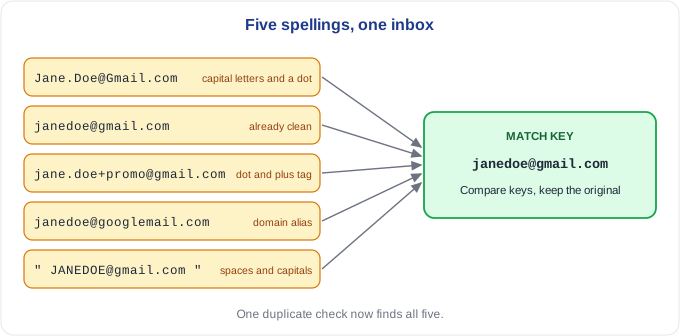
The five strings above all become janedoe@gmail.com. Now a simple duplicate check finds them.
The rules, in order
A sensible normalization applies a few steps in sequence.
- Trim whitespace. Spaces at the start or end of a cell are common in exports and break matching.
- Lowercase everything. Technically the part before the at sign can be case-sensitive, but in practice virtually every mail provider ignores case, so lowercasing is safe for matching.
- Unify known domain aliases. Gmail addresses can also be written with
googlemail.com. Treat both as one domain. - Remove plus tags where the provider supports them. Everything after a plus sign in the local part, up to the at sign, is a tag that the provider ignores for delivery. Gmail is the best-known example.
- Remove dots, but only where the provider ignores them. Gmail ignores dots in the part before the at sign. Most other providers do not.
Steps one and two are safe for every address. Steps three to five depend on the domain, which is where the trouble starts.
Normalize by domain, not by blanket rule
The most common mistake is applying a rule to every address because it works for Gmail.
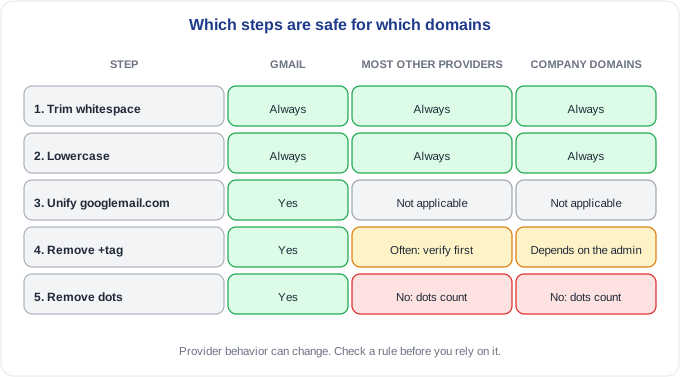
Trimming and lowercasing are safe everywhere. Removing a plus tag is reliable for Gmail and often works elsewhere, but support varies, so check before you apply it widely. Removing dots is where you must be careful: it is correct for Gmail and wrong for most other domains, where dots are part of the mailbox name.
The false-match trap
If you strip dots from every address, you will eventually merge two different people.
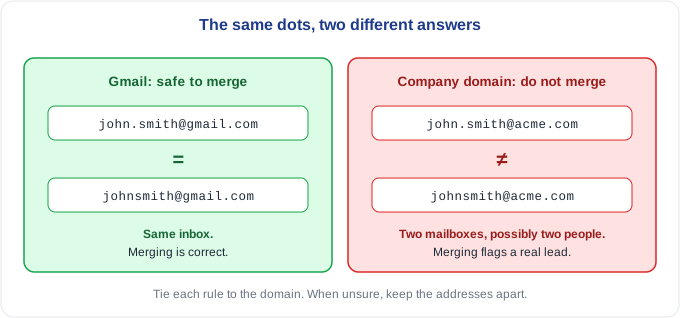
At Gmail, john.smith@gmail.com and johnsmith@gmail.com are the same inbox, so merging them is correct. At a company domain, john.smith@acme.com and johnsmith@acme.com could easily be two employees with different mailboxes. Treat them as the same person and you reject a real lead as a duplicate.
That is why the rules have to be tied to the domain. A match key is a tool for finding likely duplicates, and the cost of a wrong match is a real person wrongly flagged. When the rule is uncertain, it is better to leave the addresses apart and let another signal, such as the same phone number or IP address, raise the question.
What normalization cannot catch
Normalization finds addresses that reach the same inbox. It does not find:
- Typos in the domain, such as
gmial.com, which is a different problem and needs its own check. - Different addresses for the same person. Someone with two real inboxes can submit twice and look unique.
- Disposable addresses, which are valid inboxes created to be thrown away. The disposable email checklist covers those.
- Role addresses such as info@ or sales@, which are shared by several people.
Think of it as one layer. It removes a whole class of hidden repeats, and it works best next to other checks.
Doing it in practice
You can build the match key in a spreadsheet with a few helper columns. Put the lowercased, trimmed address in one column, split the part before the at sign from the domain in two more, and apply the rules to the part before the at sign only when the domain is one you have a rule for. Then count how many rows share each key, and sort by the key so that repeats sit next to each other and are easy to review.
For a small export that is manageable. For a large one, or across several exports over time, doing it by hand is slow and easy to get wrong, because the rules differ by domain and it is easy to apply one too widely. The affiliate fraud detection guide explains where duplicate checks fit among the other signals.
If you would like to see how many hidden duplicates are in your own leads, send us a recent lead export and we will run every lead through our checks and email you a report showing which ones look suspicious and why, at no cost. A flag means a lead deserves a closer look, and the decision stays with you.
Frequently asked questions
What is email normalization? It is turning an email address into a canonical match key so that addresses reaching the same inbox compare as equal. You keep the original address and match on the key.
Does Gmail ignore dots in email addresses?
Yes. jane.doe@gmail.com and janedoe@gmail.com reach the same inbox. Most other providers treat dots as part of the name, so the rule should not be applied to them.
What is a plus tag in an email address?
It is text added after a plus sign before the at sign, as in jane+promo@gmail.com. Gmail and some other providers deliver it to the base address, which makes it easy to create many apparent addresses for one inbox.
Is lowercasing an email address safe? For matching, yes. The local part is technically case-sensitive under the standards, but in practice mail providers treat it as case-insensitive.
Should I remove dots from every email address? No. Only do it for providers that ignore them, such as Gmail. Doing it everywhere can merge two different people at the same company domain.
Normalization finds duplicates that raw matching misses, as long as it stays careful about which rules apply where.